Crop and straighten.
Crop freely, or to Original, 9:16, 1:1, 16:9, 4:5, 3:4 or 4:3. Rotate, mirror, flip, or straighten a tilted horizon.
Where: Tap a clip, then Crop.

 by rootlex
Edit
Get the shape right for wherever it's going: crop and straighten each clip, pick the canvas size, and fill the background.
Android 8.0 and up, 64-bit phones. Not on iPhone yet.
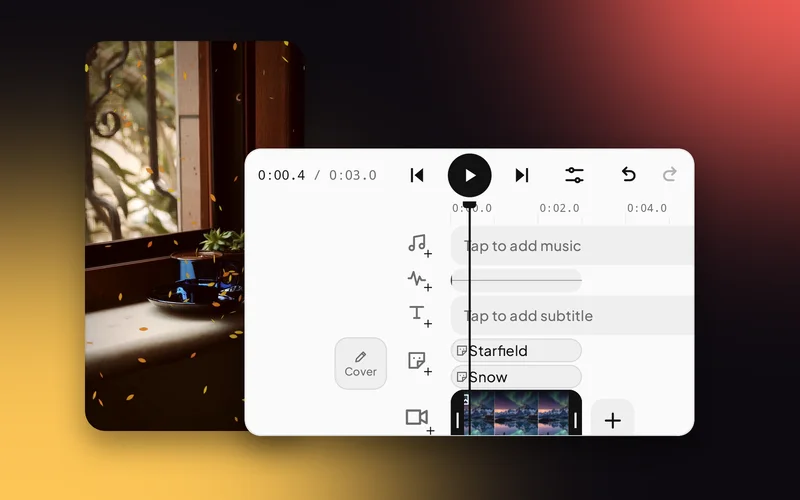
Crop freely, or to Original, 9:16, 1:1, 16:9, 4:5, 3:4 or 4:3. Rotate, mirror, flip, or straighten a tilted horizon.
Where: Tap a clip, then Crop.
Thirteen sizes, from 9:16 for Reels to 16:9 for YouTube and 21:9 for a cinema feel, or a custom ratio. New projects start in 9:16.
Where: Canvas in the dock, then Size.
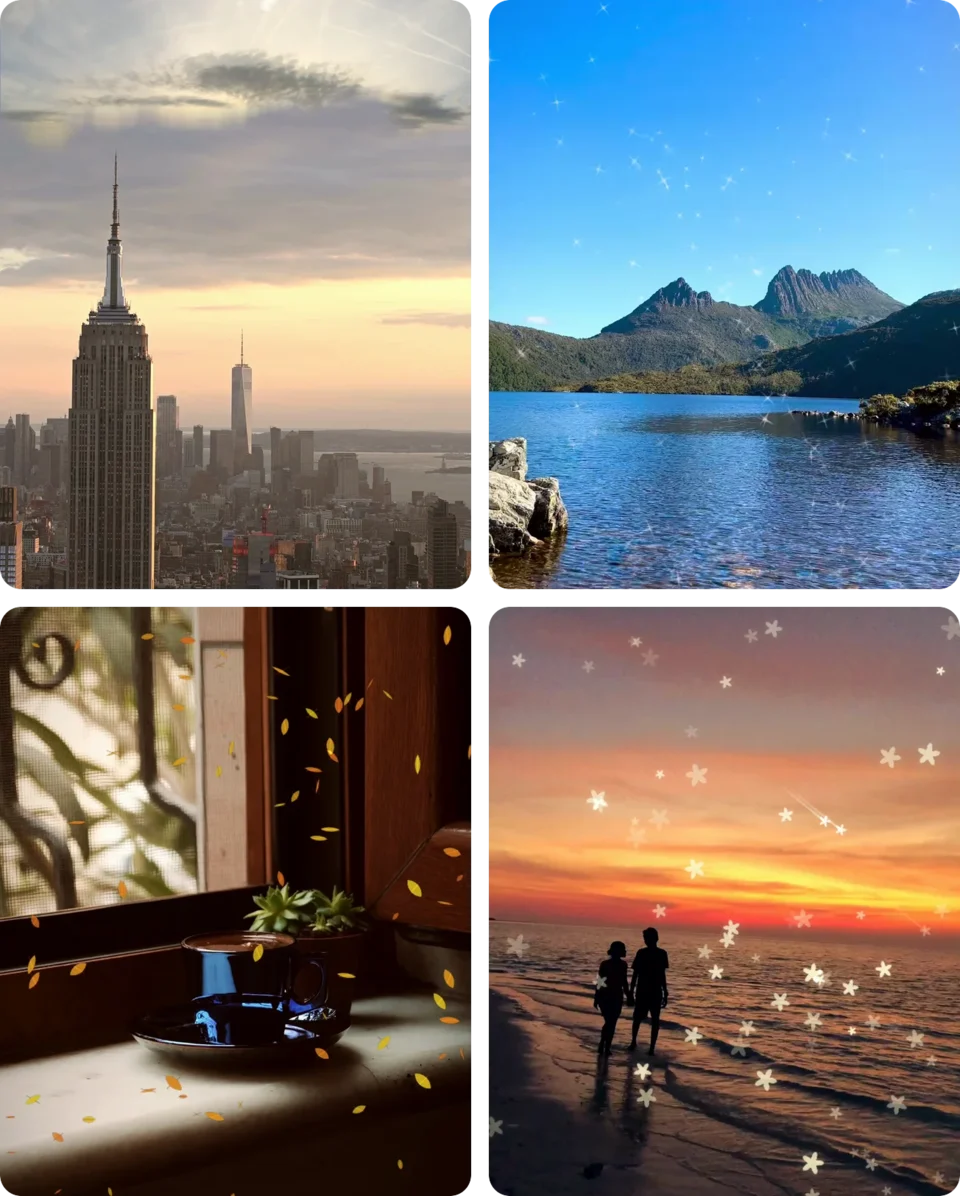
Fit or fill the frame, then fill the space with black, white, a colour, a blur of the clip, an image or one of 10 gradients.
Where: Canvas, then Background.

Mask a clip into a circle, heart, star or other shape; blur part of it; hide a face or a number plate with mosaic; or zoom in with a magnifier.
Where: Tap a clip, then Mask, Blur, Mosaic or Magnifier.
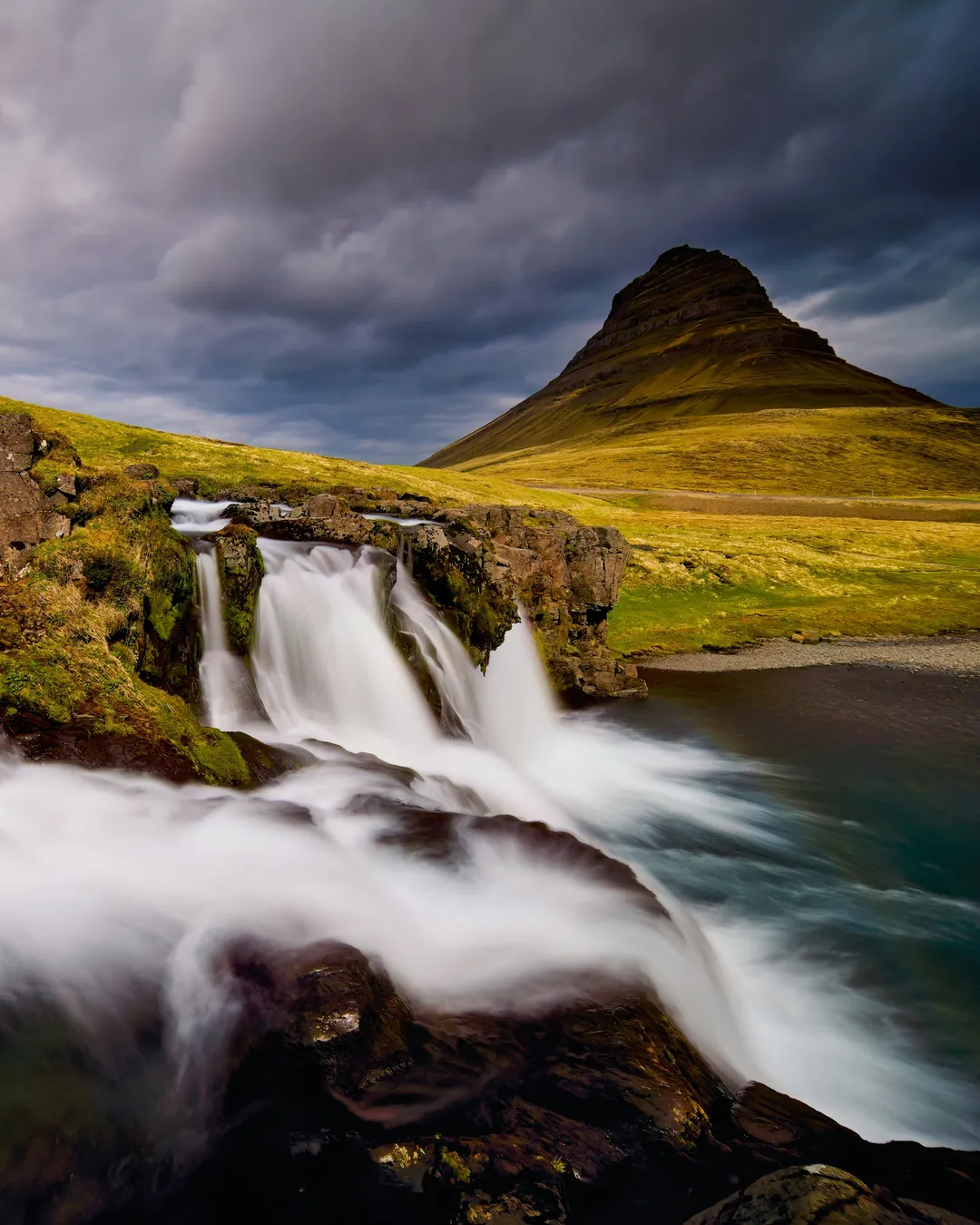
Change the canvas to post the same edit as a Reel, a Short and a YouTube video.
Fit the clip and blur its own picture behind it.
Mosaic a face, a screen or a licence plate.
Original, 9:16, 1:1, 16:9, 4:5, 2:3, 3:4, 4:3, 3:2, 21:9, 42:9, 2:1 and 1:2, or a custom ratio.
Crop trims one clip. Canvas sets the shape of the whole video.
Yes. Use Mosaic or Blur on the area, or Mask to show only a shape.
Yes. Editing, previews and saving all happen on your phone. Only sign-in and AI edit use the internet.
Swish is on Google Play. Install it, pick a photo, and show it what moves.
Get it onGoogle PlayAndroid 8.0 and up, 64-bit phones. Not on iPhone yet.