
Base.
Twenty-two classics: Fade, White, Cross Dissolve, Dissolve 2, Zoom, Zoom Out, Shake, Light, Blur, Pixelate, Circle, Push, Rotate, Rotate 2, four slides, Wipe, Blink, Vertical and Horizontal.
Where: Tap the join between two clips, then Base.

 by rootlex
Edit
Forty ways to get from one clip to the next. Set how long each one takes, use one everywhere, or snap every cut to the beat.
Android 8.0 and up, 64-bit phones. Not on iPhone yet.
Twenty-two classics: Fade, White, Cross Dissolve, Dissolve 2, Zoom, Zoom Out, Shake, Light, Blur, Pixelate, Circle, Push, Rotate, Rotate 2, four slides, Wipe, Blink, Vertical and Horizontal.
Where: Tap the join between two clips, then Base.
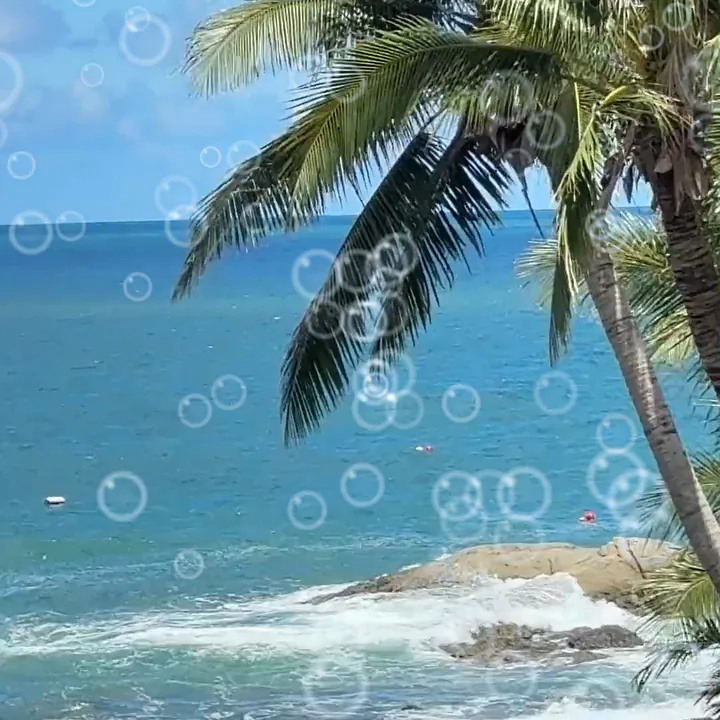
Eighteen shaped reveals: Circle 1, Dots, Line, Blinds, Stripes, Hexagon, Square, Squares, Ink, Ink 2, Paint, Paint 2, Sea, Swirl, Zebra, Memory, Lens and Glitch.
Where: Tap a join, then Matte.
Set a transition from 0.2 to 2 seconds. Apply to all puts it on every cut, and Snap cuts to beats lines the cuts up with your music.

Snap cuts to beats and use a quick Flash or Glitch.
A slow Cross Dissolve between photos.
Ink, Paint and Swirl reveals between scenes.
Forty: 22 on the Base shelf and 18 on the Matte shelf.
Yes. Apply to all sets it on every cut.
Yes. Snap cuts to beats lines them up with the beat of your track.
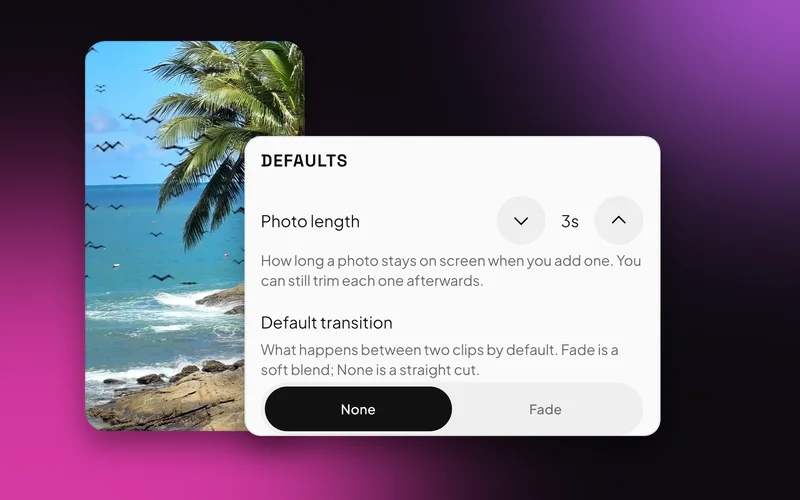
Yes. In Settings, set the default transition to Fade or None.
Swish is on Google Play. Install it, pick a photo, and show it what moves.
Get it onGoogle PlayAndroid 8.0 and up, 64-bit phones. Not on iPhone yet.