
Elements.
Thirty placeable versions of the living effects, plus eight animated pieces: Sparkles, Confetti, Glow Ring, Love Burst, Orbit, Speed Lines, Scribble and Comic Pop.
Where: Add, then Elements.

 by rootlex
Look
Drop something on top: an animated sparkle, a glow ring, a sticker, an image of your own, or an element you describe and AI makes for you.
Android 8.0 and up, 64-bit phones. Not on iPhone yet.
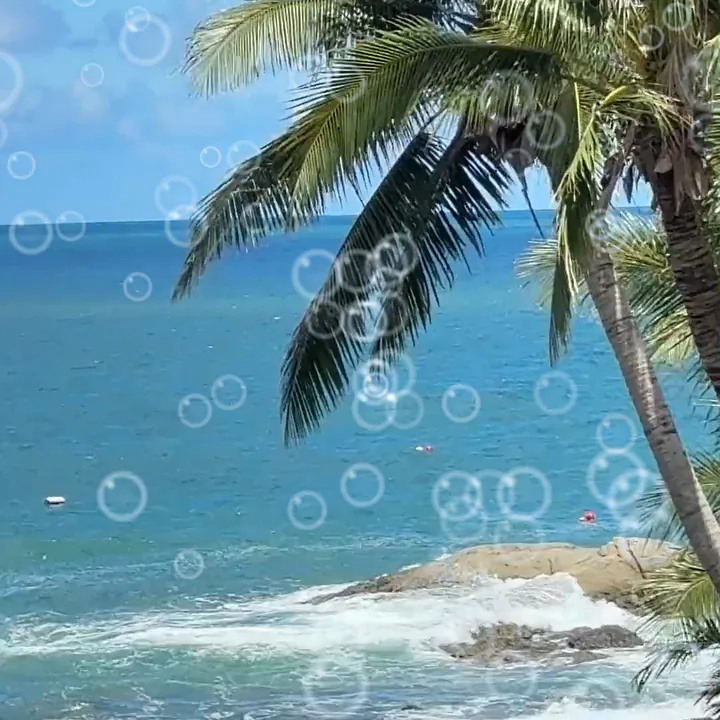
Thirty placeable versions of the living effects, plus eight animated pieces: Sparkles, Confetti, Glow Ring, Love Burst, Orbit, Speed Lines, Scribble and Comic Pop.
Where: Add, then Elements.
Hundreds of stickers in 21 groups, drawn on your phone. Keep favourites close, or add your own PNG images.
Where: Add, then Sticker.

Describe an object and choose how it moves (Still, Float, Sway, Twinkle, Pulse, Spin or Drift). It's saved in My elements to use again.
Where: Add, then Elements, then My elements.

Drag to move and pinch to resize. Every element is a layer: set its opacity and blend, bring it forward or send it back, and give it a move of its own.

A glow ring, a scribble or speed lines point the eye where you want it.
Add your own logo as a PNG and place it in a corner.
Comic Pop, Love Burst and stickers for fun posts.
Yes. Your images in the sticker sheet takes your own PNGs.
Your description goes through Swish's server to Google Gemini, which makes the element. Nothing else from your project is sent for it.
Yes. Some move on their own, and any element can take an entrance, an exit or a move you record.
Yes. Editing, previews and saving all happen on your phone. Only sign-in and AI edit use the internet.
Swish is on Google Play. Install it, pick a photo, and show it what moves.
Get it onGoogle PlayAndroid 8.0 and up, 64-bit phones. Not on iPhone yet.